How do I answer WhatsApp Business from a computer without losing the app on my phone?
On this page
Short answer
You have 2 options. WhatsApp Web or the desktop app links your computer to the WhatsApp Business app on your phone, with up to 4 linked devices. Or you connect the number to a team inbox like Cosend, through a Meta feature that keeps the app on your phone working. Each person then signs in on their own.
What you need before you start
WhatsApp Web needs only the app on your phone and a computer with a browser. A team inbox in Cosend needs a little more:
- The WhatsApp Business app, with your business number on it.
- A computer with a browser for each person who answers.
- A Cosend plan with the team inbox, from Starter at $14.95/month. A team inbox is 1 screen where your whole team answers the same chats. Cosend also has a free plan for 1 person. See pricing.
- Your phone, in your hand. The history import has to finish within 24 hours of connecting.
Cosend uses coexistence. Coexistence is Meta’s name for one WhatsApp number that works in the app on your phone and through the API at the same time.
Meta decides inside its own setup screen whether a number can connect: the WhatsApp Business app must be version 2.24.17 or newer, the number needs recent real activity in the app, and coexistence is not yet available in every country. There is no way to check in advance; if Meta refuses, you see Meta’s reason on the spot.
How to do it in Cosend
- Create your Cosend account. The button says Create account.
- On the Numbers page, press Connect WhatsApp.
- On the Connect a number page, choose Keep WhatsApp on my phone. Read What changes on your phone first.
- Meta’s own setup screen opens. Enter the number on your WhatsApp Business app and follow Meta’s steps.
- In the app on your phone, tap Confirm to bring your chat history. Up to 180 days of chats come across.
- Open the Inbox in your browser and answer from there. The phone keeps working beside it.
- To add people, open Members in Settings, press Invite a member, then Send invite. Adding people needs a team plan, from Starter.
- Want WhatsApp Web as well? Meta unlinks linked devices when you connect, so link it again from your phone. WhatsApp for Windows can’t be linked again, so use a browser.
What do WhatsApp Web and the desktop app do?
WhatsApp Web is WhatsApp in your computer’s browser. You open web.whatsapp.com and scan the QR code with your phone. WhatsApp’s desktop app links the same way. Both are linked devices: extra screens on the same WhatsApp account as your phone.
WhatsApp’s Help Center says this about linked devices on the WhatsApp Business app, as of October 26, 2026:
- You can use up to 4 linked devices and 1 phone at a time.
- They work without your phone online, but they log out if the phone goes unused for over 14 days.
- WhatsApp disconnects a linked device after 30 days without use.
- They can’t share live location, use broadcast lists, or add status.
For 1 person at a desk, that’s often enough. You get a bigger screen and a keyboard, and the phone stays as it is. Linking a computer this way doesn’t involve the API or any provider.
Why isn’t WhatsApp Web enough for a team?
Every linked device is the same WhatsApp account. So the app can’t tell you which person on your team sent a reply, or who is handling which chat.
WhatsApp’s multi-agent feature fixes part of that. It adds chat assignment, shows which device or agent sent a message, and allows up to 10 devices. It comes with a Meta Verified or Meta One subscription, and WhatsApp says the premium version may not be available to you yet.
Then there’s the cap. Without multi-agent, 1 phone and 4 devices means 5 screens at most. When someone leaves, you log their device out from your phone.
And nobody can see who’s on which chat. Picture a busy Saturday with 3 people on 3 computers. Nobody knows who is replying to the customer asking about delivery, so 2 of them answer, or none do.
Why is a team inbox on the API different?
The WhatsApp Cloud API is Meta’s service for software to send and receive WhatsApp messages on your business number. A team inbox on it isn’t a linked device. With coexistence, Meta sends every customer message to your phone and to Cosend at the same time.
| WhatsApp Web or the desktop app | Cosend team inbox | |
|---|---|---|
| How it connects | A linked device on your phone’s WhatsApp account | Meta’s API, with coexistence |
| How many | 1 phone and 4 devices; up to 10 devices with multi-agent | 3 people on Starter, 10 on Growth, 25 on Scale |
| Own sign-in for each person | No, every device is the same account | Yes, with their own email |
| Who sent each reply | Only with multi-agent | Every reply shows who sent it |
| Assigning a chat | Only with multi-agent | Yes, with Assignee |
| If the phone sits unused | Devices log out after more than 14 days | Meta ends the connection after about 14 days; Cosend warns you |
| What it costs | Part of the app | From $14.95/month for the team inbox, plus Meta’s charges for API messages |
A few more things come with the team inbox:
- Teammates leave Notes beside a chat, for each other.
- 2 people can’t reply to the same chat at once. A teammate presses Ask to reply to take it over.
- Cosend can answer while you’re busy, with an out-of-hours reply set once in your words.
- Up to 180 days of past chats come in when you connect.
Connecting changes a few things in the app. Broadcast lists go read-only. Disappearing messages, view once and live location turn off in 1-to-1 chats.
Each person past your plan’s count is $5/month for each extra person. Cosend does not charge for WhatsApp messages. Meta bills your WhatsApp Business Account directly at their rates. We never mark them up, resell them, or hold your message credit.
What happens when someone answers from the phone?
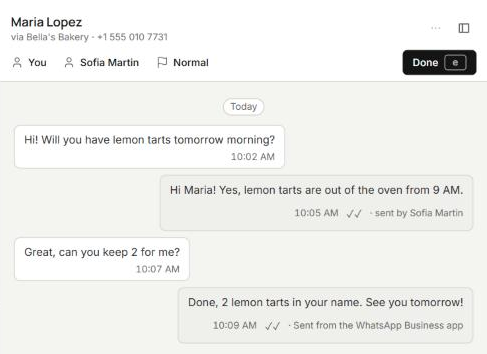
The reply shows up in the team inbox, in the same chat. Nobody on the team answers a customer who’s already been answered. Answer from the inbox or from the phone, it’s the same conversation either way.
Say a customer asks for the blue one in size 38. You reply from the phone at the counter. Sara sees your reply in the inbox, so she doesn’t answer it again.
In Cosend, that reply carries the label Sent from the WhatsApp Business app. While you’re answering from the phone, the chat shows On phone, on a number with an automation switched on.
It works the other way too. Meta says messages are mirrored between the API and the app, so a reply from the team inbox shows in the app.
Meta’s developer page adds 2 things, as of October 26, 2026:
- Replies you send from the WhatsApp Business app stay free.
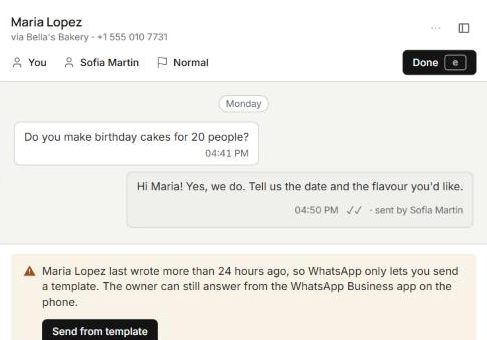
- They aren’t bound by the 24-hour reply window that applies to API messages. When that window closes, Cosend tells your team that the owner can still answer from the phone.
Common questions
Can I still use WhatsApp Web after connecting to Cosend?
Yes, once you link it again. Meta unlinks linked devices when you connect, and WhatsApp for Windows and WearOS can’t be linked again.
Does my phone need to stay online?
Linked devices work without the phone online, but they log out if it goes unused for over 14 days. With Cosend, Meta ends the connection after about 14 days of phone inactivity, and Cosend warns you when a number goes quiet.
How many people can answer from a computer?
The WhatsApp Business app allows 4 linked devices, or up to 10 with multi-agent. Cosend’s team inbox includes 3 people on Starter, 10 on Growth and 25 on Scale.
Will my customers notice anything?
No. They keep messaging the number they know.
Sources
Spotted something out of date? Email hello@cosend.app.
Related guides
Best WhatsApp shared inbox tools for small businesses (2026)
7 WhatsApp team inbox tools compared by use case, with published prices, seats, trials and coexistence support.
Updated GuideCan I keep the WhatsApp Business app on my phone and use the API too?
Coexistence for owners: what stays on the phone, what changes, your chat history, and how to connect.
Updated GuideHow can several people answer one WhatsApp Business number?
4 ways to put a team on 1 WhatsApp Business number, compared, and how to set it up in Cosend.
Updated